 Gifer
GiferGIFs in Telegram groups and channels
The first question about GIFs in a shared chat is almost always the same: do I have to add the bot there? You don't. What follows is the rest of it — what the other members see, and the chats where a GIF won't go out.
You don't add the bot to the group
Inline mode is built so that the bot never becomes a member of the conversation. You type the username in your own message field — that part is yours alone — and what goes into the chat is the GIF you picked. No admin rights, nobody else's permission.
The same answer covers the second question people ask: the bot does not read the conversation. What it gets is your query — the messages in the chat and the list of members are not passed on to it.
Sending a GIF in a group, step by step
- Open the message field. The same one you normally type a message to the group in.
- Type the username and a word. @gifer, a space, and what you are looking for. The strip opens above the field — on your screen, not in the chat.
- Tap a GIF. A finished message goes into the chat: the GIF, with a note about which bot it was found through.
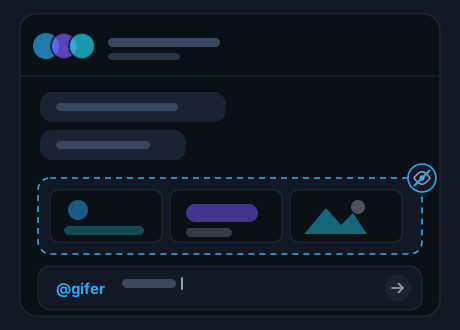
What everyone else in the chat sees
While you scroll the strip, nothing appears in the chat: no intermediate messages, no trace of the request. The word you searched for stays in your message field.
One message appears in the end — the GIF itself, sent under your name. Telegram shows the bot's username next to yours, and that note is usually how everyone else notices the bot at all.
Posting a GIF to a channel
A channel uses the same message field: username, word, pick from the strip. The only difference is who may publish there, and that is decided by the channel's settings rather than by the bot.
Groups with strict rules work the same way. If members are not allowed to post media, the GIF will not go out — no matter where it came from. That is the chat's own restriction, and only its admin can lift it.
Checklist: what a GIF needs to send in this chat
- Permission to post in the chat — and permission to post media, if the admin has limited it.
- A message field on the screen: inline mode is called from there and nowhere else.
- The username at the start of what you are typing, not in the middle of a sentence.
- A connection: the strip loads over the network, like the rest of the conversation.
Everything else matches a private chat. The basic move is laid out in how to find and send GIFs on Telegram, and if you want a GIF you have sent before, the username with no word brings it back.
Frequently asked questions
Do I have to add the bot to the group?
No. It does not become a member of the chat: you call the strip up in your own message field, and only the GIF you picked goes into the conversation.
Will the group see what I searched for?
No. The strip opens only for you, and the word stays in your message field. What lands in the chat is the finished message with the GIF.
Can I post a GIF to a channel?
Yes, if you are allowed to publish there. The steps are the same: @gifer, a space, a word — then pick from the strip.
Try it in a chat of your own
Open the bot — it shows a button that starts the search right there, in the chat with the bot. A good place to practise before typing into a group.
Open the bot in Telegram