 Gifer
GiferHow to find and send GIFs on Telegram
A GIF on Telegram doesn't have to be downloaded first or dug out of your camera roll. It happens in the same field where you type a message: a username, a word, a tap on the picture — and it's in the chat.
GIF search lives in the message field, not in your gallery
The habit of finding a GIF somewhere else, saving it and then attaching it to a message is left over from a time when there was no other way. Telegram cuts the detour out: the search sits inside the message field, and the GIF you pick goes into the chat in one tap, without passing through your phone's storage.
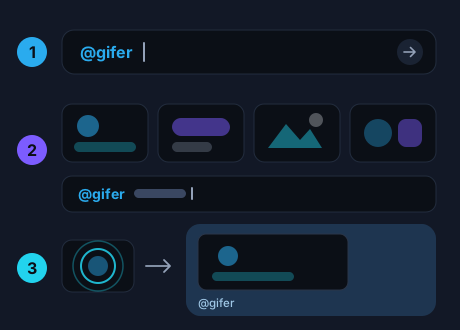
The mechanism is called inline mode. You type a bot's username in the message field, add a space and a word — and a strip of GIFs opens above the field. A tap on any of them sends it to the chat under your own name.
Nothing has to be installed or set up beforehand. Inline mode is part of Telegram itself: the strip appears while you are still typing, in the chat you are already in.
Stickers work the other way round: they live in their own panel and come up by emoji. Which of the two fits a given message is covered in GIFs and stickers on Telegram.
Send a GIF in three steps
- Type the username. In the message field of any chat, type @gifer and add a space.
- Add a word. One or two words for what you need: “cat”, “thanks”, “tired”. The strip fills up above the field while you type.
- Tap the one you want. It goes into the chat right away — no download, no forwarding, no second screen to come back from.
If nothing catches your eye at once, scroll on — there's more to see past the first screen.
What to type to get the GIF you want
A GIF is found by a short word, not by a description of the scene. One or two words for what you want work better than a full sentence.
- An action or a feeling: “hug”, “dancing”, “tired”, “applause”.
- A short reply instead of a whole line: “thanks”, “hello”, “finally”.
- The name of a character or a phrase from a meme — if you remember how it is spelled.
Type in whichever language suits you: the word is matched exactly as you typed it, not translated on the way. If a word in one language brings up something other than what you had in mind, the same word in another language is worth a try.
And one rule saves more time than the rest: when the results are off, change the word instead of adding three more to it.
On Android, iPhone, desktop and web
It works the same way wherever there is a message field: in the mobile apps, in Telegram Desktop and in the web version. On a computer a click replaces the tap, and the rest is identical, down to the last detail.
The GIFs you sent through the bot belong to your Telegram account, not to a device. Move from the phone to the computer and the strip is where you left it; the same goes for a tablet or a second phone you are signed in on.
There is nothing to set up separately on any of them: whichever app you open Telegram in, the three steps above are the whole procedure.
If the strip does not open or a GIF stays still instead of playing, the cause is usually the device itself — what to check when GIFs don't play or send goes through it step by step.
Your own GIFs: the username with no word
Type @gifer and add nothing after it, and the strip starts with the GIFs you have already sent through it; trending GIFs follow them. It is the shortest way back to the one GIF you keep sending to everybody.
How that strip differs from Telegram's own Saved GIFs, and where to look for a GIF that somebody sent to you — in a separate guide: saved GIFs on Telegram.
Sending GIFs in groups and channels
A group chat changes nothing: username in the message field, strip, tap. The bot doesn't have to be added to the group — it never becomes part of the conversation, and what it gets is your query, not the chat.
What the other members see, what a channel needs and when a GIF won't go out after all — in the guide on GIFs in groups and channels.
Frequently asked questions
Does the GIF get saved to my phone?
No. It goes into the chat straight from the strip: nothing is downloaded first and nothing is attached afterwards.
How do I send a GIF from a computer?
The same way as from a phone: type @gifer in the message field, add a space and a word, then click the GIF you want. Inline mode works in Telegram Desktop and in the web version.
Whose message is it once the GIF is sent?
Yours — it is your message in the conversation. Telegram shows next to it which bot the GIF was found through.
Do I have to pay for this?
No. No subscription and no sign-up: Telegram itself is enough.
Send your first GIF right now
Open the bot — it shows a button that starts the search right there, in the chat with the bot. Type a first word and see what comes up.
Open the bot in Telegram